- Guides
- 2 min read
How to tell if a utility app respects your privacy
A keyboard, a scanner, a file viewer: small tools often ask for a lot. Five checks you can do in a few minutes before you install one, on iPhone or Windows.
Utility apps often ask for a lot: your keyboard, your camera, your files. You can learn most of what you need about one in a few minutes, before you install it. These are the five things we’d check.
1. Read the privacy label on the store page
On the App Store, every app’s page has an App Privacy section where the developer says what data the app collects, whether it’s linked to you, and whether it’s used to track you. Apple defines tracking as linking data from the app with data from other companies for targeted advertising, or sharing it with data brokers (Apple’s guide to app privacy details). “Data Not Collected” is the answer you hope to see for a simple tool.
2. Open the privacy policy and look for specifics
The label is short. The policy should say plainly what stays on your device and what leaves it, and name any outside service the app uses. General promises like “we take your privacy seriously” tell you nothing. Each of our apps has its own policy page, like the one for GlowKeys, a keyboard that never keeps what you type.
3. Match the permissions to the job
A scanner needs the camera. A flight tracker needs your location. If an app asks for something its job doesn’t need, that’s the question to ask before you tap Allow. Inflight Live uses your location to show your speed, altitude and what’s below the window, with no Wi-Fi needed.
You can change your answers later. On iPhone, go to Settings › Privacy & Security and pick a category to see which apps asked (Apple Support). On Windows, go to Settings › Privacy & security. Classic desktop apps aren’t always listed there, though, and Windows can’t limit them one by one (Microsoft Support), so on a PC the privacy policy matters even more.
4. Ask whether it needs an account at all
Most small tools don’t. If an app wants your email address before it does anything, that’s data someone will keep, and an account to delete later. None of our apps uses accounts.
5. Check that the main feature works offline
An app that does its work on your device has less reason to send your data anywhere. Turn on airplane mode and try the main feature. Text Export, for example, builds its PDFs on your iPhone.
A quick checklist
| Check | Good sign | Worth a question |
|---|---|---|
| Store privacy label | Data Not Collected, or only what the job needs | Data used to track you |
| Privacy policy | Says what stays on the device and names outside services | Only general promises |
| Permissions | Match the app’s job | Ask for more than the job needs |
| Account | Not needed | Required before anything works |
| Offline | Main feature works in airplane mode | Nothing works without a connection |
Questions people ask
Is an app that works offline always private?
Not always, but it has less reason to send your data anywhere. Its privacy policy should still say what it stores and where.
What does “Data Not Linked to You” mean on the App Store?
The developer says the data it collects isn’t tied to your identity. Apple asks developers who make that claim not to re-link the data to you later (Apple).
Where can I see what an app has done with its permissions on iPhone?
Turn on the App Privacy Report in Settings › Privacy & Security. It shows when apps used the permissions you gave them and which websites they contacted.
From the studio
Apps in this article
-
 Inflight Live
Plane Speedometer, No Wi-Fi
-
 Text Export
Text conversations to PDF
Keep reading
All articles-
Windows
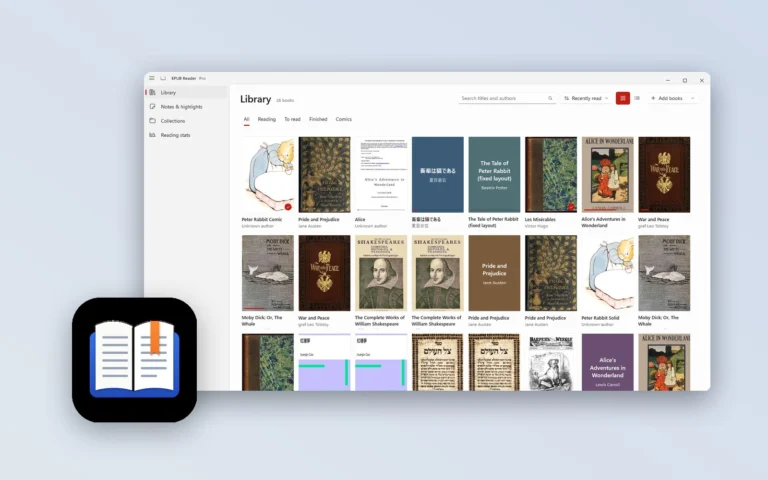
Our apps are now on Windows
EPUB Reader and File Viewer are in the Microsoft Store, with a document scanner and a screen recorder on the way. Same rules as our iPhone apps: one job each, no account, your files stay on your PC.